

As a kids’ camera supplier, I get a lot of questions from parents, teachers, and even small play-based learning centers: “I took hundreds of photos of my kid’s soccer game/art project/first time at the zoo, but when I plug the camera into my laptop, nothing pops up—what software do I actually need to make these photos viewable on a computer?” It’s a fair question, because kids’ cameras aren’t the same as the fancy DSLRs or full-frame point-and-shoots adults use. They’re lightweight, often built with durable casings that stand up to drops and sticky fingers, and most are designed for simple, one-button shooting—so their data transfer and viewing needs are way more straightforward, but that also means they don’t work with every random photo software you might have lying around your laptop.
Let’s start by breaking this down from the perspective of someone who sells these cameras every day. I’ve seen parents pull out old, clunky photo software that came with their computer a decade ago, only to find it can’t read the tiny storage card that fits in Cartoon Digital Camera kids cameras (and our other models). I’ve also seen teachers download sketchy third-party tools just to realize they’re full of bloatware, or struggle because they thought a simple USB cord would work without any extra software. The good news is that for most kids’ cameras, the software you need falls into three clear categories, and none of them require paying for expensive professional editing tools. Let’s walk through each one, plus what to avoid, and how to make the process as easy as possible.
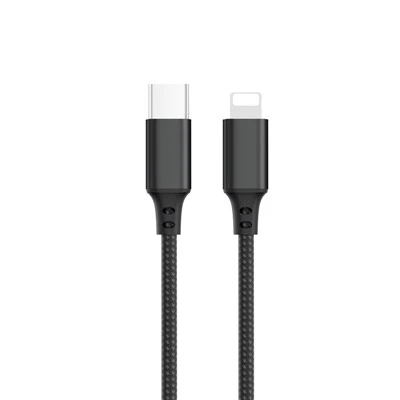
First, the most common and accessible option: generic, built-in file explorer software. This is the software every computer already has, no download required, and it works for 90% of the kids’ cameras we sell—including our Instant Camera Cartoon and Mini Cartoon Camera lines. Here’s how it works. Almost all modern kids’ cameras (from every reputable brand, ours included) store photos on a tiny SD or microSD memory card, not internal storage that’s locked away. So when you plug the camera into your computer via the USB cord that comes with every box, or even remove the microSD card and put it in a cheap, $5 microSD card reader (way more reliable than a lot of USB cords that come with kid toys), your computer will recognize it as an external drive. On Windows, that’s File Explorer—you’ll see a little icon pop up labeled “Removable Disk” or the name of your camera. On Mac, it’s Finder, under the “Locations” section on the left sidebar.
The files you want are almost always in a folder labeled “DCIM” (short for Digital Camera Images)—that’s the standard folder name for almost all digital cameras, even cheap kids’ ones. Just open that folder, and you’ll see every photo your kid took, named with simple number sequences (like IMG_0001.jpg, which is universal for JPEG files, the standard for kids’ camera photos). No fancy software needed here—you can right-click to save them to your desktop, open them in Paint or Preview to view them, or even send them straight to a grandparent via email. I recommend this method for anyone who just wants to view and save photos, not edit them—It’s fast, doesn’t take up extra space on your computer, and avoids the hassle of installing new programs. That said, there are a few exceptions here: some older or super cheap kids’ cameras use a proprietary file system that Windows or Mac won’t recognize natively, but that’s rare for models like our Cartoon Digital Camera, which are designed for global use and work on all major operating systems right out of the box.
Second, if you want a little more than just viewing and saving—like organizing photos, making simple edits, or short videos (many modern kids’ cameras shoot 10-second clips too)—free, user-friendly photo management software is your next pick. Again, this doesn’t have to be anything complicated, and it’s tailored to people who don’t have experience with professional tools like Adobe Lightroom. The key here is to pick software that supports the small, simple JPEG files that kids’ cameras shoot, because many of the pro tools are built for larger RAW files from adult cameras and won’t work well for these tiny, lightweight shots. For Windows, the built-in Photos app (that comes with every Windows 10 and 11 computer) is perfect. It lets you import all your photos from your camera’s DCIM folder in one click, sort them by date, crop out a blurry part of your kid’s art project, or even make a short slideshow to share with family. For Mac, the Photos app that’s pre-installed works exactly the same way, and it’s even easier to import photos directly from the camera via AirDrop if you have a newer Mac that doesn’t have USB-A ports (our Cartoon Digital Camera works with AirDrop too, no extra setup needed).
There are also great free third-party options if you want a little more flexibility. Google Photos is a favorite among the parents I talk to because it lets you upload all your kids’ photos to the cloud, view them on any device, and even share a link with relatives who live across the country. It automatically sorts photos by date, so you can find the photo of your kid’s first step at the park last summer without digging through 100 files, and it has simple editing tools for cropping, adjusting brightness, or adding little stickers that make photos feel more playful. The best part? The free tier stores high-quality versions of photos (no loss in quality for kids’ camera shots) with enough space for thousands of them, so you don’t have to worry about running out of storage on your computer. The only thing to note with Google Photos is that if you upload the original, full-size files, they count against your Google Account storage, but for most kids’ camera photos (which are only 1-2MB each), that’s barely a drop in the bucket. Another option is IrfanView, a free, lightweight Windows-only tool that’s perfect if you just want to view and batch-resize photos to post on social media or print—no bloat, no extra features you don’t need. I always tell customers who buy our Instant Camera Cartoon that IrfanView is great for resizing photos to fit on photo paper when they want to print out the physical copies the camera produces.
Third, if you want to print, edit, or create physical keepsakes (like photo books, keychains, or custom stickers) from your kids’ photos, you might need printing or creative software—though even this is usually free or low-cost, and tailored for this exact purpose. A lot of people don’t realize that kids’ camera photos are small, so when printing, you don’t need a huge, professional printer; you just need software that can resize the photos without making them blurry. The same Google Photos I mentioned earlier has a printing tool where you can order prints right from your account, or you can save the photo to your computer and use your printer’s built-in software (most modern printers have their own free apps that work with any photo file). If you want to get a little more creative, tools like Canva have free templates for photo books, wall art, or stickers, and you can upload your kids’ photos from any camera to customize them—add a caption like “Mia’s 5th Birthday” or a silly cartoon graphic to match the playful vibe of our Mini Cartoon Camera.
Now, let’s talk about what you don’t need. I’ve had customers ask if they need to install Adobe Photoshop, Lightroom, or other professional-level photo editing software, and the answer is almost always no. These tools are designed for photographers who shoot RAW files, adjust white balance for complex lighting, or edit professional portraits—they’re expensive, complicated, and will waste time for most people who just want to view their kid’s vacation photos. Kids’ cameras are built for simplicity, so their photos don’t need that level of editing, and trying to use pro tools will just lead to frustration. Another thing to avoid is any software that requires paying a monthly subscription; there are plenty of free options that work perfectly, and paying for extra software when you’re just trying to view photos is unnecessary.
I should also mention a few common troubleshooting tips that I share with every customer, because I know how frustrating it can be when a camera won’t connect. First, always make sure your kids’ camera is charged before connecting it to a computer—some models, like our Cartoon Digital Camera, will turn off automatically if the battery is low, and that will make it unrecognizable to your computer. Second, if you’re using a USB cord, try a different cord—often the cords that come with kids’ cameras are short and fragile, and just need to be replaced. If that doesn’t work, remove the microSD card from the camera (most models have a little slot on the side, easy for kids to open under adult supervision) and use a microSD card reader. These are super cheap, available at any drugstore or electronics store, and they work 90% of the time when the camera itself isn’t connecting. Third, make sure your camera is set to “Mass Storage” mode (sometimes called “USB Mode”) when you plug it in—this is a setting in the camera’s menu, and it’s usually the default, but if your computer isn’t recognizing it, double-checking this setting will fix most issues.


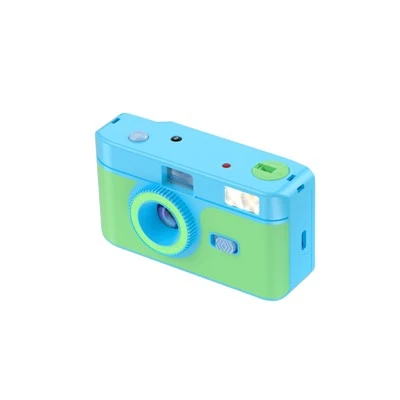
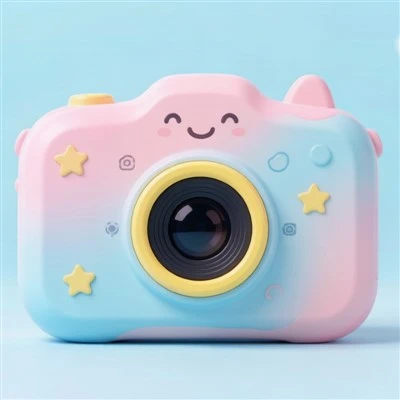
For anyone who’s purchased our kids’ cameras, whether it’s the cartoon-style one with the big smile on the front, the pocket-sized Mini Cartoon Camera for little hands, or the Instant Camera Cartoon that prints photos right in the box, I’m always happy to help with any software questions. I’ve seen so many parents who struggle with tech get overwhelmed, but the whole point of these cameras is to capture special moments, not cause stress over viewing them.
If you’re a parent, teacher, or small business looking to stock kids’ cameras for classrooms, birthday parties, or gifts, we’ve got a range of models designed for every age group—from toddlers to 10-year-olds. All our cameras come with easy instructions for connecting to computers, free guides to software, and support to help you with any questions. Whether you just need a simple camera for your kid to take photos at family gatherings, or you’re looking to source products for your kids’ retail or learning space, we can help you find the right fit and walk you through every step, including software tips for viewing photos on your computer. We’re always here to chat, answer questions, and make sure you have everything you need to enjoy the photos your little ones take.
Looking at the bigger picture, what I’ve learned in my years as a kids’ camera supplier is that the best software for viewing kids’ photos is the software that fits your needs, not the most complex or expensive one. For most people, a quick plug into your computer’s file explorer will work fine. For those who want a little more organization, free apps like Google Photos or the built-in Photos app on your computer are perfect. And if you want to print or get creative, free tools like Canva will cover all your bases. You don’t need to be a tech expert, you don’t need to pay a dime (unless you want to order prints), and you definitely don’t need fancy professional software. The goal is to turn your kid’s blurry, silly, wonderful photos into something you can save, share, and look back on for years—and the right software makes that process easy, not hard.
References
- Digital Imaging Resources. (2023). "Standard File Naming and Folder Structures for Consumer Digital Cameras." Consumer Tech Association.
- Google Photos. (2024). "Supported File Types for Upload and Storage." Google Workspace Help Center.
- Microsoft. (2024). "View and Organize Photos in Windows Photos App." Windows Support Documentation.
- Apple. (2024). "Import Photos and Videos from Your Camera Using Mac." Apple Support.